Installing Java on a Codeanywhere CentOS DevBox
1. First sign up for a Codeanywhere account (obviously)
2. Spin up a CentOS DevBox (VM)
2.1 Right-click on DevBox and choose Add DevBox, as shown.

2.2 Since we don’t need any of the other features here, choose New Stack under Custom Stacks and click Next, as shown.

2.3 Likewise, choose Blank and click Next, as shown.

2.4 Choose CentOS and give it a name, as shown.

2.5 Wait for it to finish. When you see this screen, you’re all set!
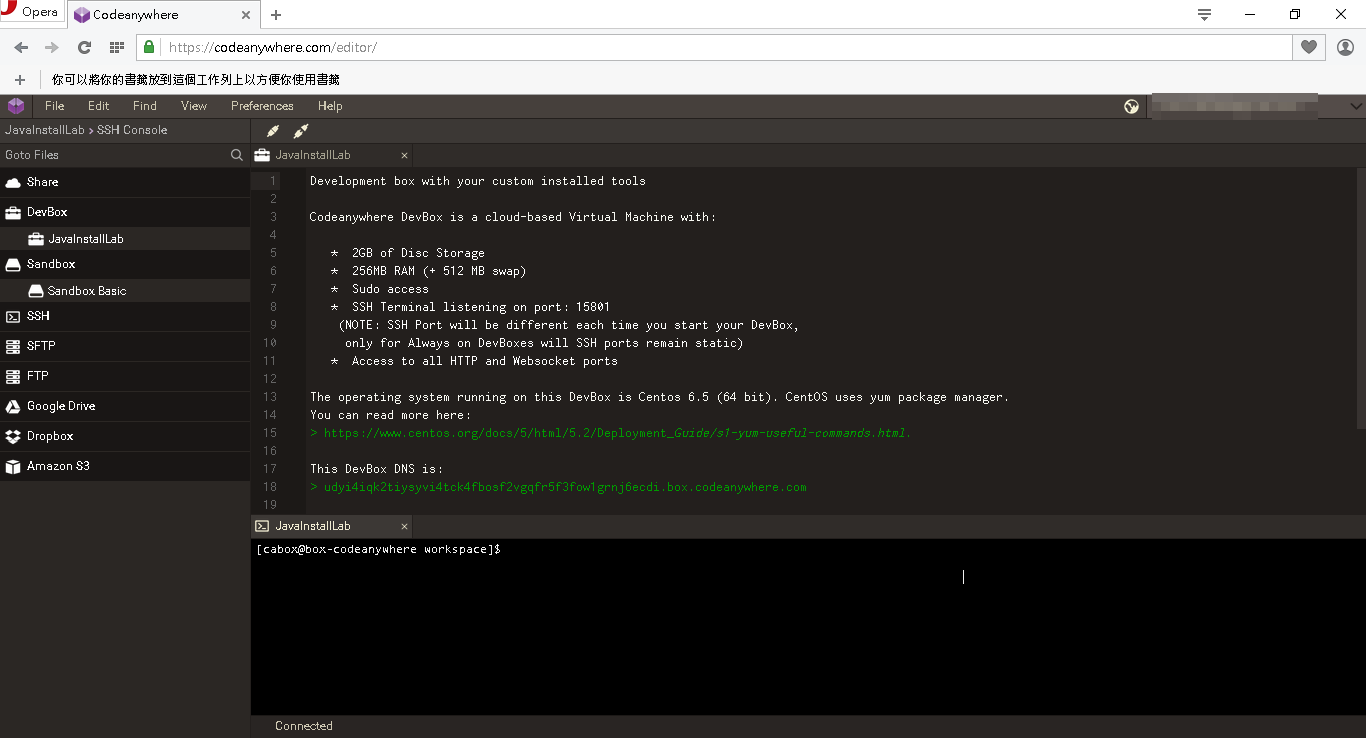
3. Install Java
Reference:
http://tecadmin.net/install-java-8-on-centos-rhel-and-fedora/
I’ll also paste the exact commands I ran below:
java -version cd /opt sudo wget —no-cookies —no-check-certificate —header “Cookie: gpw_e24=http%3A%2F%2Fwww.oracle.com%2F; oraclelicense=accept-securebackup-cookie” “http://download.oracle.com/otn-pub/java/jdk/8u60-b27/jdk-8u60-linux-x64.tar.gz” sudo tar xzf jdk-8u60-linux-x64.tar.gz cd /opt/jdk1.8.0_60/ sudo alternatives —install /usr/bin/jar jar /opt/jdk1.8.0_60/bin/jar 2 sudo alternatives —install /usr/bin/javac javac /opt/jdk1.8.0_60/bin/javac 2 sudo alternatives —set jar /opt/jdk1.8.0_60/bin/jar sudo alternatives —set javac /opt/jdk1.8.0_60/bin/javac java -version
4. Installation complete! As shown, you can now see the Java information!
